|
Tools Project
|
Tools used at work as a Software Developer
|
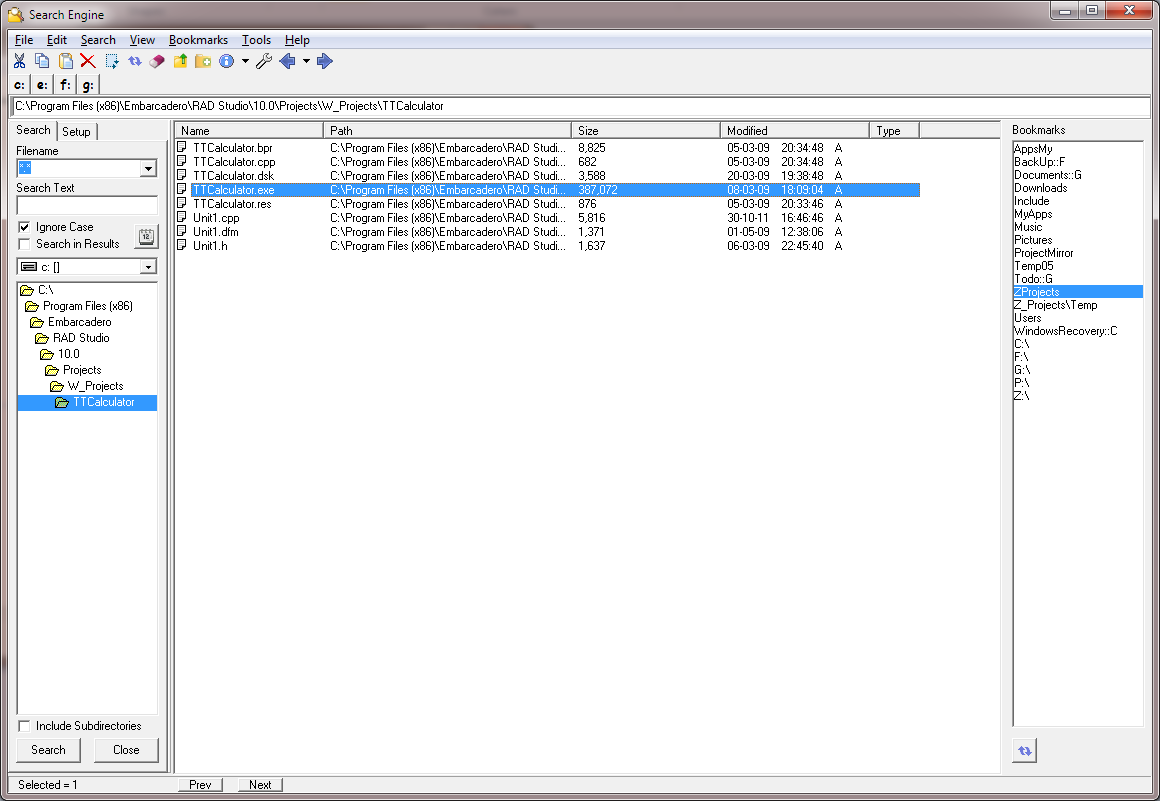 Search Engine |
  Search Engine Overview:

    This project was started as Microsoft Vista did not include a Search Engine

    This tool allows searching for files and within files
|
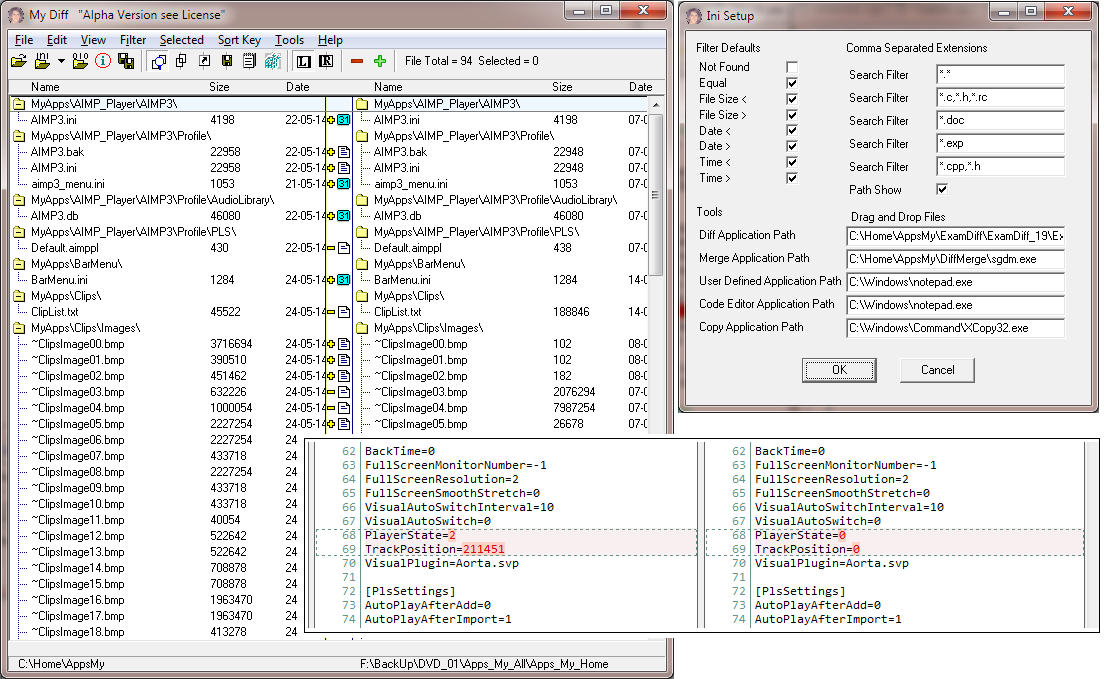 Difference Engine |
  Overview

  This application is a simple file and directory tree comparison platform.

  Various tools are hosted to achieve this objective.

  File versions can be compared using external utilities of the user's choice.

  Binary comparisons are also possible.
|
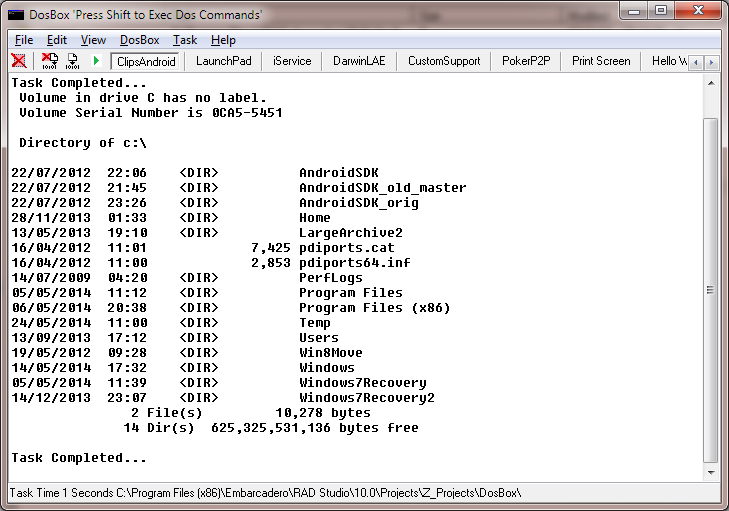 Dos Box |
  Overview:

       As Win9x has no buffered Dos Box this application was developed.
       The Memo Control allows copy, paste and buffering of output,
       allowing scrolling functionality.

       Creates a child process and redirects the STDOUT handle to a Memo Box.
       Uses the WaitForSingleObject API to signal completion.
       If the shift key is pressed when executing a command the following
       string is prefixed to the command line \Command.com /c or \Cmd.exe /c\
|
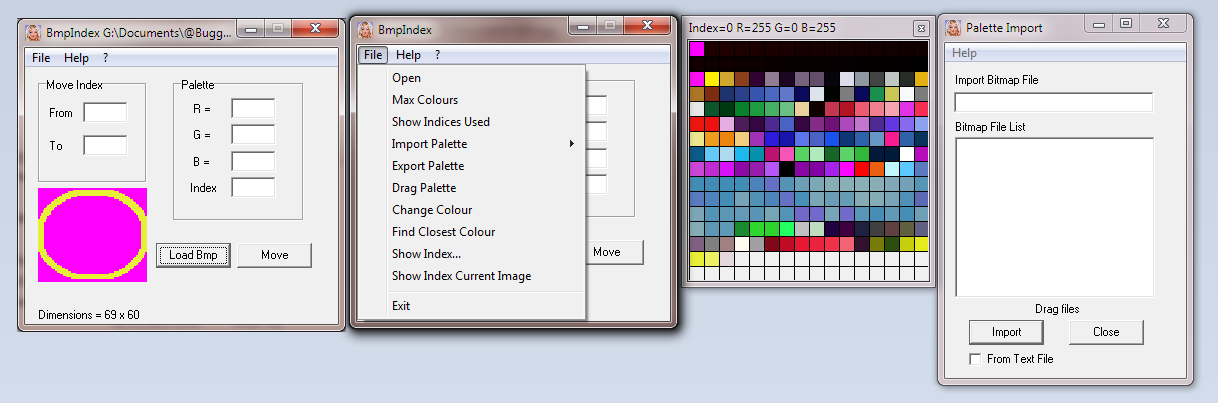 Bitmap Index Tool |
  Overview:

    Application for manipulating 256 colour Windows bitmap images

  Features:

    • Open
      Load bitmap image

    • Max Colours
      Maximum colours of bitmap image

    • Show Indices Used
      List of indices used by the bitmap image

    • Import Palette
      From Text File
      See the Contextual Help by clicking on the "From Text File" menu item
      From Bitmap Image
      Drag the master image whose palette will be imported onto the top Edit Control
      Drag all the bitmap files onto the bottom ListBox
      Click on the Import Button

    • Export Palette
      Export Palette as a Text File

    • Drag Palette
      Drag palette indices manually

    • Change Colour
      In the Palette Groupbox populate the RGB and Index values

    • Find Closest Colour
      Load a bitmap
      In the Palette Groupbox populate the RGB values
      The exact or closest matching palette index will be displayed

    • Show Index...
      Show Index Current Image
      The Cursor movement will reveal the palette index associated with the colour

    • Move Button
      In the Move Groupbox populate the From and To Index values

    • Load Bmp Button
      Same as Open menu item
|
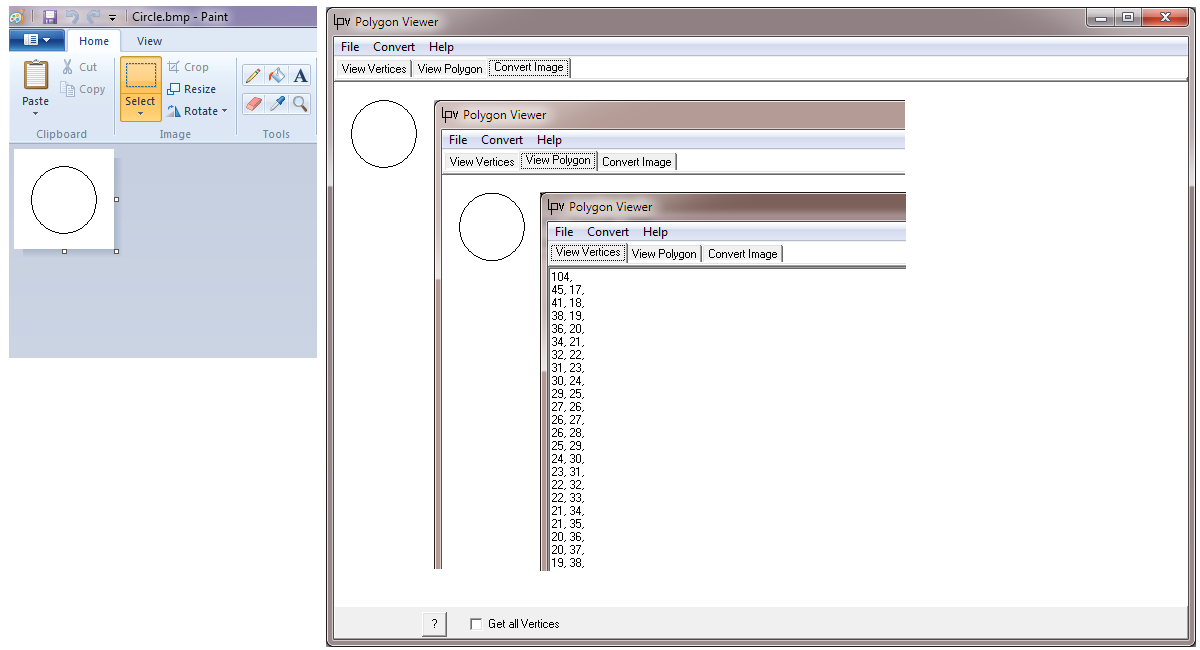 Polygon Viewer |
    Overview:

    Uses the OpenTV o_polygon_element format

    Quick and Dirty application to simplify drawing of polygon shapes

    To convert an image to polygon vertices:
     • Draw a black and white polygon in an Image Editor
     • Copy the polygon into the Windows Clipboard
     • Click the "Convert" Menu "Paste Image" item
     • The polygon outline is traced to calculate the vertices
     • The vertices will be placed in the "View Vertices" Editor
     • Click on the "View Polygon" Tab to draw the Polygon Vertices

    To view polygon vertices:
     • The Clear Button clears the "View Vertices" Editor
     • Paste Vertices into the "View Vertices" Editor
     • Click on the "View Polygon" Tab to draw the Polygon Vertices

    Don't place numbers in comments as there is no pre-processor

    No optimization is available for straight angles

    Check the "Get all Vertices" Checkbox on the "Convert Image"
    Tab to get a raw dump of all vertices when Pasting the image
|
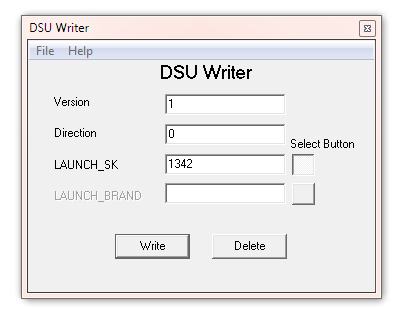 DSU Writer |
  Overview:

  DSU Writer writes a "DSU" file
|
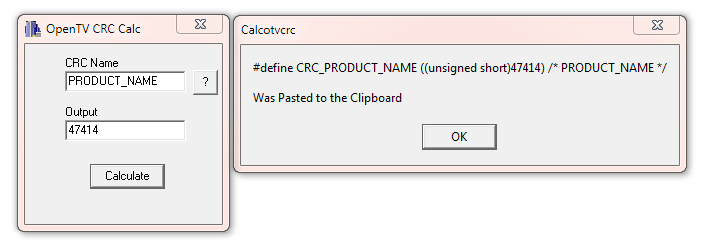 Generates an OpenTV Cyclic Redundancy Check #define |
  Overview:

  Generates an OpenTV Cyclic Redundancy Check #define used in "C" switch case statements

  #define CRC_PRODUCT_NAME ((unsigned short)47414) /* PRODUCT_NAME */

  Used in server communications

  Example:

  switch (O_crc_compute(Name, O_strlen(Name)))
  {
    case CRC_PRODUCT_NAME:
      break;
  }
|
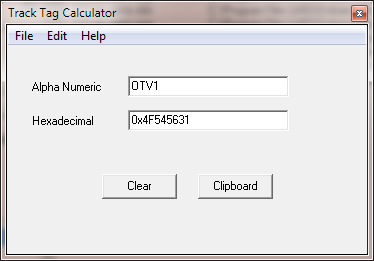 Track Tag Calculator |
  Overview:

  Converts Track Tags from the ASCII format to the Hexadecimal format and vice versa
|